 Patched and Backed Up
Giving and removing access for staff and contractors
Last reviewed
In short
- Every person with a login is another door into your site.
- Give each person their own login, with only the access their job needs.
- When someone leaves, remove or change every login they could use.
Why access needs care
A site with one owner has one set of keys. Then you hire a freelancer, or a volunteer joins the committee. Now more people hold keys. Each one is a place where a stolen password or a careless click could let someone in.
You don't need to distrust people. You just don't want one lost key to open everything.
Give only what's needed
Security people call this the principle of least privilege. It means giving an account only the privileges it truly needs to do its job.[1]
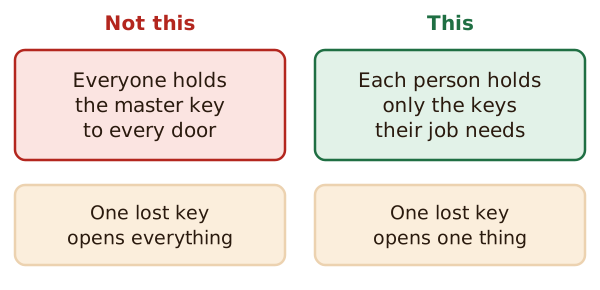
OWASP, a web security non-profit, puts it a similar way. Access control should stop users from acting outside their intended permissions.[2] Its advice is to deny by default, except for public resources.[2] That means nobody gets access unless you decide they should. One of its listed failures is access that should be limited to particular roles or users but is open to anyone.[2]
In practice, ask one question for each person: what is the smallest amount of access that lets them do the job?
See who has access now
In WordPress, open Users. Each row shows a username, an email address and a role.
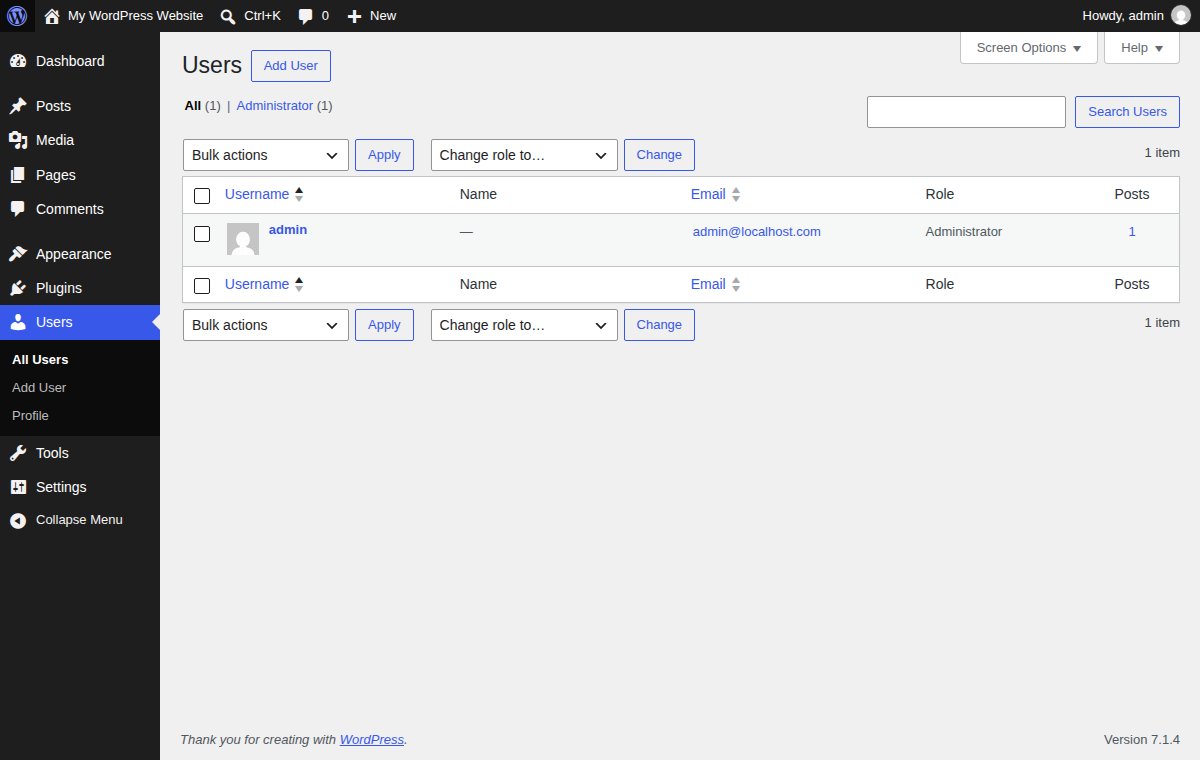
The Role column shows what kind of account each person has. Above the list, a Change role to… menu lets you change it for the people you tick. Check that nobody has a bigger role than their job needs.
Give each person their own login
Don't share one password between people. When each person has their own account, you can remove one person without changing things for everyone else. You can also see who did what.
Each password should be used for only one account.[3] A shared password breaks that rule. If you give a team a password manager, they only need to remember one master password each.[3]
Turn on a second check for the people with the most power. Start with admin accounts.[4] See logins, passwords and two-factor.
Count the doors
A person can hold a key in more than one place. WordPress's help page names several access points: FTP or SFTP, the WP-ADMIN login, and your host's control panel such as CPANEL.[5] There's also your database login.[5]
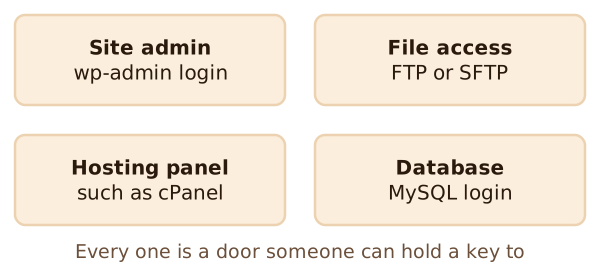
A contractor who builds your site may have been given all of these. Write down which ones each person holds.
When someone leaves
Do this on their last day, or when a contractor's job ends.
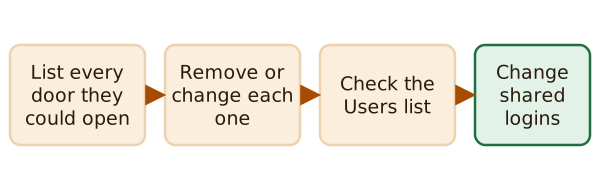
- List every door they could open. Use the four above, and add any others you've given out.
- Remove or change each one. Delete their account, or change the password if it was shared. WordPress says changing passwords means changing all access points, and that it covers every user who has access.[5]
- Check the Users list. Make sure their account is gone and nothing new has appeared.
- Change any shared logins. If someone knew a password that others use too, change it.
Treat it like returning a building's keys. Keep a short written list of who has access to what, and update it each time.
What's next
Good habits lower the risk, but they can't remove it. Next, learn how to tell when something has gone wrong. Read signs your site has been hacked.
Sources
- Principle of least privilege, Wikipedia (accessed 2026-11-12)
- A01:2025 Broken Access Control, OWASP (accessed 2026-11-12)
- Require Strong Passwords, CISA (US Cybersecurity and Infrastructure Security Agency) (accessed 2026-11-12)
- Require Multifactor Authentication, CISA (US Cybersecurity and Infrastructure Security Agency) (accessed 2026-11-12)
- FAQ My site was hacked, WordPress.org Documentation (accessed 2026-11-12)